How to use an iPad or tablet alongside your Klasu classroom
Learn how to connect an iPad or tablet to your Klasu online classroom. Tutors and students can use a second device to write, draw and interact with the shared whiteboard while keeping video and audio on their computer.
Klasu's integrated online classroom allows tutors and students to connect a second device, such as an iPad or touchscreen tablet, during lessons.
You can use your computer for video and audio while using your tablet to write, draw, solve questions and interact with the shared whiteboard.
This is particularly useful for Maths, Science and other subjects where handwritten working, diagrams and annotations are important.
How to connect your tablet
-
Open your lesson in the Klasu classroom.
-
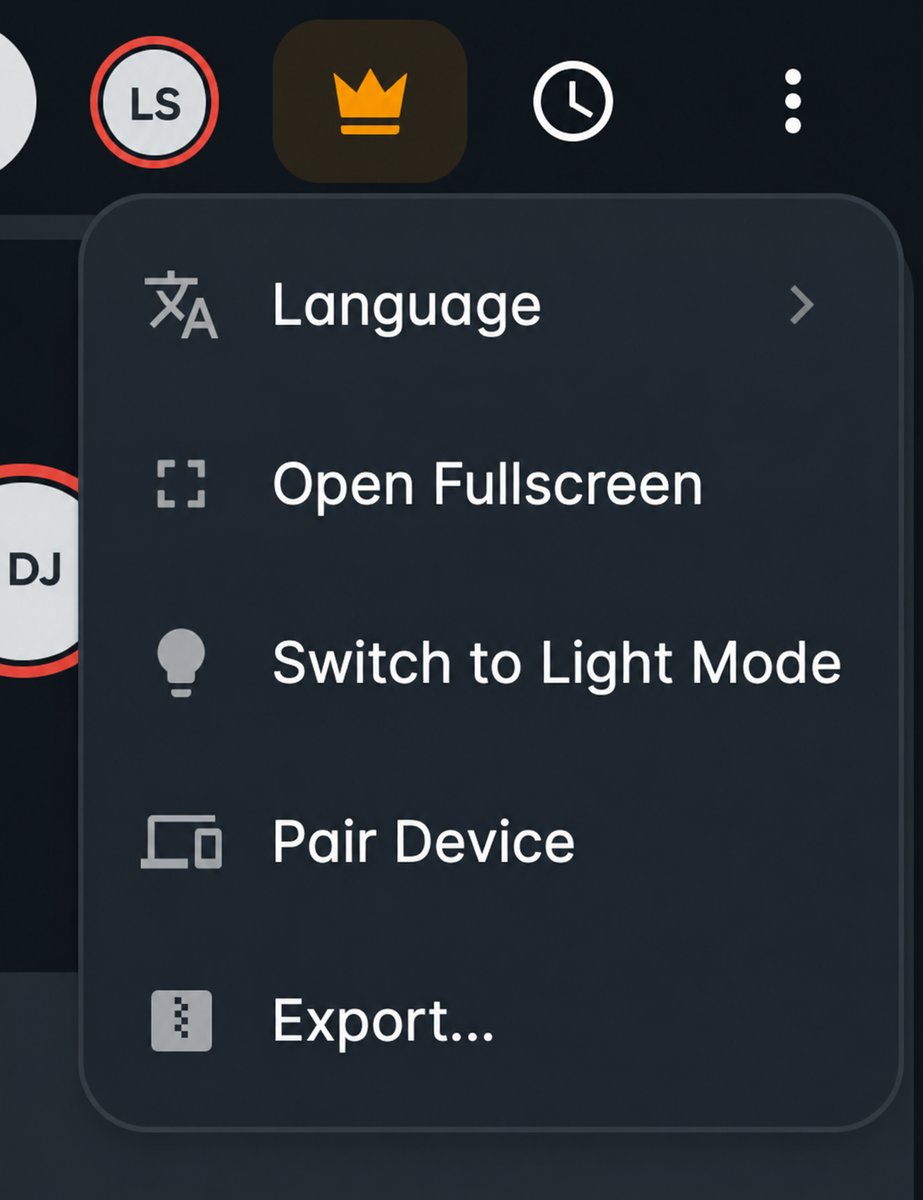
Click the three dots (⋯) in the top-right corner.
-
Select Pair Device.
-
A QR code will appear. Scan it using your iPad or tablet.
-
Your second device will automatically join the same classroom, allowing you to write, draw and interact with the whiteboard.
Alternatively, you can copy the pairing link and open it on your tablet.
Things to know
-
No additional setup required: Device pairing is already enabled for tutors on Klasu.
-
Use both devices together: Your computer handles video and audio, while your tablet can be used for writing and drawing.
-
Stylus support: For the best experience, we recommend a touchscreen tablet with a compatible stylus, such as an iPad with Apple Pencil.
-
Pairing links: Links remain valid for 24 hours.
Why use Klasu's integrated classroom?
Unlike arranging separate video meetings, Klasu keeps your teaching materials and lessons together in one place.
You can prepare teaching materials in advance, use interactive whiteboards and annotations during lessons, and allow students to revisit saved lesson materials and recordings afterwards.